Your review link
Copy
Add it to e-mail receipts, thank-you e-mails and chat replies. It opens your review form directly.
Google gives every business that manages a Business Profile a free review link and QR code. Get both in a few clicks on a computer, print the code where visits end, and ask the way Google allows. With BonusQR Premium, your loyalty program can also ask your regulars after the visit you choose.
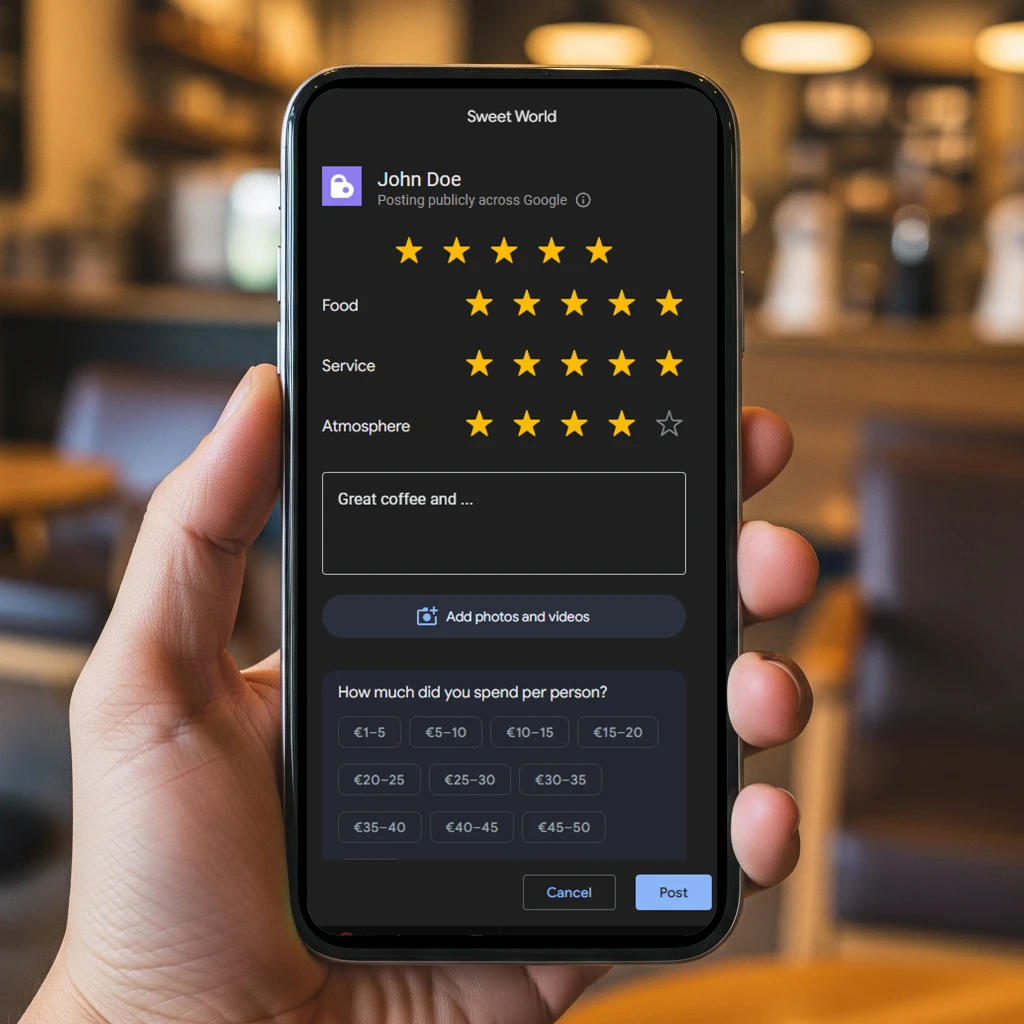
A Google review link is a web address that opens the review form of your Google Business Profile. A Google review QR code is the same link as a printable code: customers scan it with their phone camera and Google’s review form opens.
To post, customers must be signed in to a Google Account. Google notes they can set one up with an e-mail address that isn’t Gmail. They choose the stars, write the review and post it themselves.
If you manage your business on Google (Google Business Profile, formerly Google My Business), you can get both free in your profile.
No generator needed: Google puts both in your Business Profile. Open it in a computer browser and follow Google’s own labels.
Copy
Add it to e-mail receipts, thank-you e-mails and chat replies. It opens your review form directly.
Right-click the codeSave image as...
An image of the code, ready to print for tables, the counter or takeaway bags.
Computer browser only. Google says review QR codes can currently be generated only in a computer browser, not on mobile devices.
Source: Google Business Profile Help
Asking for reviews is allowed. Google’s rules are about how you ask.
Sources: Google Maps content policy, Google Business Profile Help, Tips to get more reviews
Source: Google Maps content policy
Our advice: ask everyone the same way. Keep loyalty rewards for visits and purchases, and ask for reviews separately.
More detail in our guide: Incentivized Reviews Policy: What Google and the FTC Allow
A QR code on the table only works if someone scans it then and there. With BonusQR Premium, members of your loyalty program are asked for a Google review automatically when their visits reach the number you choose.
Your Google Maps profile must be linked. BonusQR pairs your business with the Google Maps listing under your name near your address. If it picked the wrong one, unlink it in Settings (“This is not my business – unlink”) and search for yours.
BonusQR even asks for Google reviews automatically, and since we turned that on, we started getting more positive feedback on Maps.
We also activated Google review prompts through BonusQR, and many loyal customers started leaving positive feedback on Google Maps.
Put the code where the visit ends, not where it begins.
On the receipt or in the bill folder, once guests have had the whole experience.
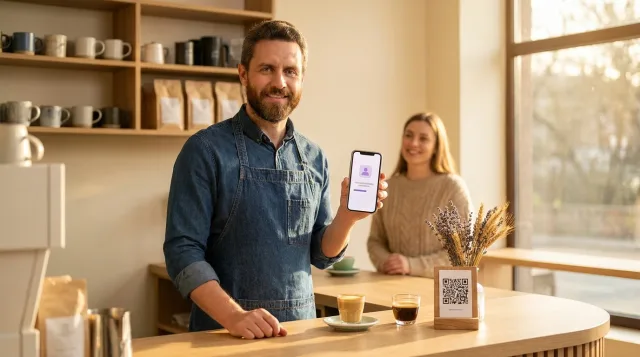
A small card next to the payment terminal, where customers wait a few seconds anyway.
A sticker for customers who eat or drink at home.
In e-mails and chat replies, the link works better than a code.
Guests who are just arriving have nothing to review yet.
On the Basic plan, your loyalty app can have a Feedback tab. Signed-in members rate their visit from 1 to 5 stars and can add a comment of up to 1,000 characters, once every 30 days.
You read every rating in your BonusQR admin, linked to the member. BonusQR never posts anything to Google for your customers.
What owners ask before they print the code.
Open your Google Business Profile in a computer browser, select “Read Reviews” and then “Get more reviews”. Right-click the QR code and select “Save image as...” to download it. Google says review QR codes can currently be generated only in a computer browser, not on mobile devices.
In the same “Get more reviews” panel of your Business Profile: select “Copy”. The link opens your review form, so you can add it to receipts, thank-you e-mails or the end of a chat, which are the places Google itself suggests.
Not for the basics. Google gives you the review link and a downloadable QR code in your Business Profile for free. Third-party generators either build a review link from your business listing or turn a link into a QR code, which can help if you want your own colours or a logo on the code.
No. Google’s policy prohibits offering incentives such as payment, discounts, or free goods or services in exchange for posting a review, or for changing or removing a negative one. Reward visits and purchases in your loyalty program, and ask for reviews separately.
No. Google’s content policy says businesses must not discourage negative reviews or selectively ask for positive ones. They must not require or pressure customers to leave a review while on the premises, or ask for specific content. Ask everyone the same way and let customers write what they want.
Yes. Customers must be signed in to a Google Account to post a review. Google notes they can set one up with an e-mail address that isn’t Gmail.
On the Premium plan, each customer in your loyalty program gets an e-mail when their visits at your business reach the number you set: 3 by default, or any number from 1 to 20. Customers who have the mobile app installed also get a push notification. Each customer is asked once, whatever they thought of the visit, and the button opens your Google review form. Your Google Maps profile must be linked in the BonusQR settings.
No. BonusQR only opens Google’s own review form. Customers choose the stars, write the review and post it themselves with their Google Account.