How Do I Add Rewards Cards to Passbook: A Simple Guide
The customer is at the till, phone in hand, asking for the rewards card on their screen instead of in their pocket. That's the moment most owners realise the old paper card has already lost, because people now expect their loyalty to live beside their payment cards, tickets, and coupons. A digital wallet is no longer niche in the UK, either, with a Which? survey reporting that 62% of UK adults used one, and usage was especially strong among younger adults, with 88% of 18–24-year-olds using a digital wallet compared with about 34% of those aged 65 and over. (Which?)
If the search is how do I add rewards cards to Passbook, the answer is blunt, the old Passbook name is mostly legacy language, and the living product is Apple Wallet. That matters because the fix is sometimes on the customer's phone, sometimes on the merchant's setup, and sometimes on Apple's side of the flow. A café, salon, gym, restaurant, or shop owner needs to know which of those three buckets the problem sits in before wasting time chasing the wrong fix.
The Moment a Customer Asks for a Digital Card
The old “Passbook” wording still shows up in searches, but the job is straightforward: get the rewards pass into Apple Wallet or Google Wallet and keep the customer moving. That request usually comes up at the counter, in an email, or over chat, because people want the card now, not a history lesson on wallets.
Start with one reality check. If the business already issued a wallet pass, the customer can add it quickly. If the merchant never turned on wallet delivery, there may be nothing to tap, no matter how often the page refreshes.
Practical rule: if the add button is missing, do not assume the phone is broken. First check whether the merchant actually issued a wallet pass.
That split matters for small businesses. On the customer side, the problem is usually convenience. On the business side, it is delivery, compatibility, and whether the rewards account exists outside the wallet card itself.
A Which? survey found that Apple Wallet was used by 50% of UK adults and Google Wallet by 46% of respondents, which explains why people expect the add flow to be obvious. The same survey found that 48% chose a wallet because it was already set up on their device or account, while 46% cited ease of use. (Which?)
Every Working Way to Add a Rewards Card on iPhone
Start with the merchant-issued Add to Apple Wallet button on a website, email, or sign-up page. Tap it, confirm the pass, and the card goes straight into Wallet beside payment cards and tickets. That is the cleanest route because the business has already done the delivery work, so the customer does not have to hunt through menus or guess which app to open.
If the button is not there, the next move is usually a QR code from the merchant. Open the iPhone camera, scan the code, and follow the pass preview to add it. Apple's iPhone guidance also says a customer can create a pass from a physical card, photo, or screenshot when the card contains a barcode or QR code. Open the image in Photos and tap Add to Wallet if that option appears. (Apple iPhone guide)
AirDrop is the fastest assisted option at the counter. A staff member can send the pass from an iPad or another iPhone, and the customer adds it without email back-and-forth. The old-school route still works too, by photographing an existing paper or plastic card and saving it when Apple offers the add prompt. That fits a legacy card with a stable barcode. It does not suit rotating codes, because a screenshot of an expired code will fail at checkout.
For a small business, the order should be clear: merchant-issued button first, QR code second, AirDrop third, photo import only when the barcode stays stable.
| Source / Section | Where the button lives | Best for |
|---|---|---|
| Merchant website or email | On the sign-up confirmation page or in the email body | The smoothest customer journey |
| QR code at the till | On a poster, receipt, or table tent | In-store sign-up without an app |
| AirDrop | On a staff device | Assisted enrolment at the counter |
| Photo or screenshot import | In Photos after the customer captures the code | Migrating an older card |
A useful reference point for device behaviour is NeoTeo's guide to the 17e, because buyers often check handset compatibility only after a pass fails to appear. A pass that fails to show up on an unsupported handset is a device problem, and no merchant-side fix will make that phone add it.
Why the Add Button Sometimes Disappears
The biggest mistake is assuming Apple automatically turns every loyalty card into a wallet pass. It doesn't. Apple says eligible rewards cards can be added only when the issuer or merchant provides an Add to Apple Wallet option, and availability depends on selected partners, locations, eligible devices, and software versions. (Apple UK support)
That means the missing button usually points to one of four problems. The merchant hasn't enabled wallet delivery. The pass is restricted by region or partner rules. The device or software is out of scope. Or the loyalty scheme lives only inside a brand app, so there's no standalone pass to add.
Apple does support multiple barcode formats, including QR, Aztec, PDF417, Code 128, Code 39, Codabar, EAN-13, and Interleaved 2 of 5. But format support doesn't make a card addable by itself. The issuer still has to publish the pass in a way Wallet accepts, and the merchant still has to decide whether the pass is a true wallet pass or just a visual card inside an app. (Apple developer documentation)
Quick diagnostic checklist
- No add button on the page: the merchant probably hasn't enabled Wallet delivery.
- Add button appears on one device but not another: the issue is likely device support or software version.
- Card lives only in a brand app: the merchant has kept the account inside the app, not in Wallet.
- Barcode appears but won't add cleanly: the card may be a screenshot of a dynamic or expired code.
A wallet pass can be convenient without replacing the full loyalty account. The pass is the front door, not the whole building.
That distinction matters because a customer can hold a scannable pass without seeing live points, redemption rules, or purchase history inside Wallet. For a café or retailer, the better question is not "can it be saved?" but "does the pass let staff redeem the reward cleanly?"
How Small Businesses Issue a Wallet Pass That Actually Works
A small business should issue one pass per customer, not one new pass per visit. That keeps the wallet tidy, avoids duplicate cards, and makes updates land on the same record. The clean setup is straightforward, create a unique customer ID, keep the pass payload minimal, and update the balance or reward state on the server after each visit or redemption.
The barcode should be the scanner's friend, not a design trophy. A high-contrast QR code or Code 128 barcode is the sensible default because the pass has to scan reliably at a café till, under poor lighting, and sometimes on a cracked screen. The barcode should act as an opaque member token, while the authoritative points balance and reward status stay in the backend.
For a dual-platform rollout, the practical move is to serve Apple Wallet to iPhone users and Google Wallet to Android users after registration. That's the route a lot of small businesses need, because wallet use is already common in the UK. UK Finance reported that 57% of UK adults used mobile wallets in 2024, up from 42% in 2023, and a separate 2025 figure showed 65% were registered for at least one mobile payment service, with adoption reaching 89% among 25–34-year-olds versus 29% among over-65s. (UK Finance)
A platform such as the BonusQR wallet-based loyalty program fits that model because it pairs a customer profile with wallet delivery, rather than treating the pass as a standalone gimmick. The right setup is a registration flow with a clear Add to Wallet button, a pass template, and server-side updates that keep the same card alive after each scan.
The manager checklist
- Choose dual delivery: issue both Apple Wallet and Google Wallet passes.
- Keep IDs unique: use a non-guessable identifier for each customer.
- Update, don't recreate: push balance changes to the existing pass.
- Test in real conditions: scan under café lighting, on different device ages, and after removal and reinstall.
If the business gets those four things right, the wallet pass stops being a tech project and becomes a working loyalty layer.
Fixing the Four Things That Go Wrong With Wallet Passes
The first failure is the missing button. The symptom is obvious, nothing appears that says Add to Apple Wallet. The cause is usually issuer setup or device eligibility. The fix is equally blunt, check whether the merchant has enabled wallet delivery and whether the phone is supported.
The second failure is a stale balance. The customer added the pass, but the points or reward status never changes. That usually means the business is issuing a new pass for every visit instead of updating one pass server-side. The fix is to keep one wallet record and update that same record after each redemption or stamp.
The third failure is scanning trouble. The pass shows, but the reader keeps missing it. Apple warns that some barcodes and QR codes rotate periodically, so photographing an expired code, such as a time-sensitive ticket, won't produce a working pass. The fix is to use a stable identifier for repeat visits and make the barcode readable, with enough quiet space and proper contrast. (Apple support)
The fourth failure is an old device or old account state. The pass was tied to a phone that no longer exists, or a customer changed hardware and lost the stored card. The fix is to keep the underlying loyalty account available through a web profile or staff lookup, so the wallet card is a convenience layer rather than the only place the reward exists.
Operational rule: if the pass is the only copy of the truth, the business has built a fragile system. The source of truth needs to live server-side.
That's also why the barcode should never carry more than the minimum needed for redemption. Embedding mutable reward data directly in the scannable code is asking for stale balances and awkward cashier conversations.
Keeping Your Rewards Working When Your Phone Changes
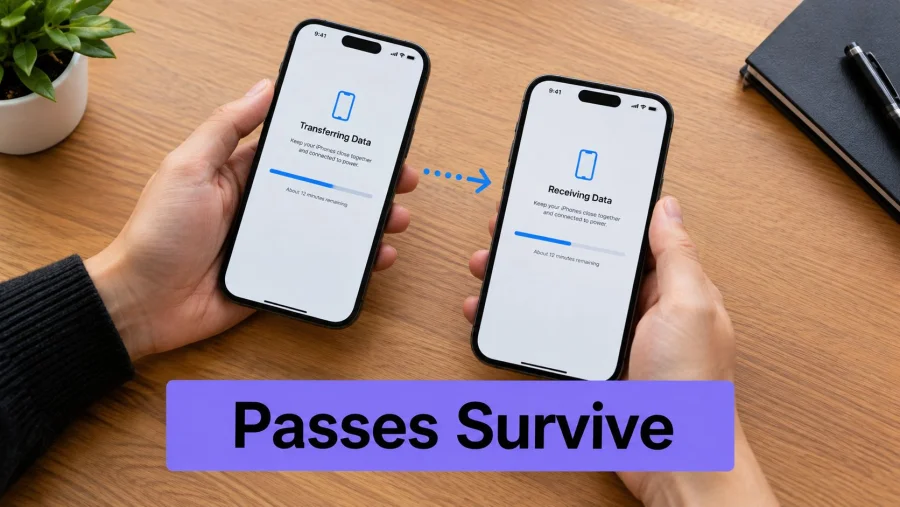
Phone swaps are where loyalty schemes fail if the business only trusts the Wallet app. A new handset, a reset Apple ID, a dead battery, or a move to Android can leave a customer staring at an empty screen at the exact moment they want to redeem. The fix is not dramatic, keep the customer's loyalty profile alive outside Wallet and let the pass point back to it.
That's especially important because wallet users often rely on the phone as their everyday wallet substitute. Research involving 2,003 UK consumers found that 50% said they no longer needed a physical wallet or purse because they used a digital equivalent, while 93% of mobile-wallet purchasers had used a mobile-wallet-based loyalty programme. (Retail Technology Innovation Hub)
A sensible backup route is simple. Keep a printed or screenshot backup if the business terms allow it. Let customers recover their rewards through a web profile. And keep staff able to look up the account when Wallet is unavailable.
The rewards program for local shops should be usable even when the phone battery is flat, because real customers don't always arrive with perfect conditions. The wallet pass is the fastest lane, not the only lane.
Treat Wallet as the Fast Lane, Not the Whole Loyalty Scheme
A wallet pass should speed things up, not become the only place the rewards live. The pass is the quick-access layer. The actual loyalty account still needs to work in a browser and at the till, because that is what keeps redemption alive when the phone does not cooperate.
A QR-based setup is the right base. Wallet delivery sits on top of it, the customer scans once, and the pass stays ready for the next visit. Businesses that want a broader picture can compare approaches through how myhalo rewards members, because the test is simple, does the scheme still work when the device, app, or battery gives out?
Keep a non-wallet path live at all times. A dead battery, an old phone, or a customer who refuses Wallet should not block a sale or a redemption. The BonusQR points system supports that kind of setup because the loyalty profile stays separate from the pass itself.
That is the right way to handle how do i add rewards cards to Passbook today. Test the flow on your own phone, hand it to staff, and keep a web or QR fallback live for every customer who does not fit the happy path.


